
How to try clothes on an AI model, one garment at a time
To try clothes on an AI model, give the tool two clear inputs: the garment to transfer and the person who should wear it. Make one plain front-view result first, save the inputs and settings, then change only the part responsible for a visible mistake. A beautiful result is useful only if it still shows the clothing you intend to sell.
This is a production recipe for a seller creating an on-model image. A shopper trying an outfit on their own photo has a different goal. Neither task, by itself, establishes what size someone should buy: Google's merchant guidance explicitly says its generated try-on does not indicate fit or recommend a size.
Give the garment and the person separate jobs
The garment image supplies the item. The model image supplies the person and pose. That two-image relationship appears in both Google Cloud's virtual try-on documentation and FASHN's Try-On guide. A product-to-model generator can instead create a new person; choose that route when you do not need to keep a particular model image.
For your first transfer, pick one garment and a straightforward standing pose. Keep hands, hair and bags away from the area being dressed. Include the whole sleeve, neckline and hem in the product image. Use images you are authorized to upload and transform, including permission for any identifiable person.
Name the two files before uploading them: overshirt-charcoal-front and model-standing-front, for example. Naming is mundane until a top-and-trouser source sends the wrong garment into the next attempt.
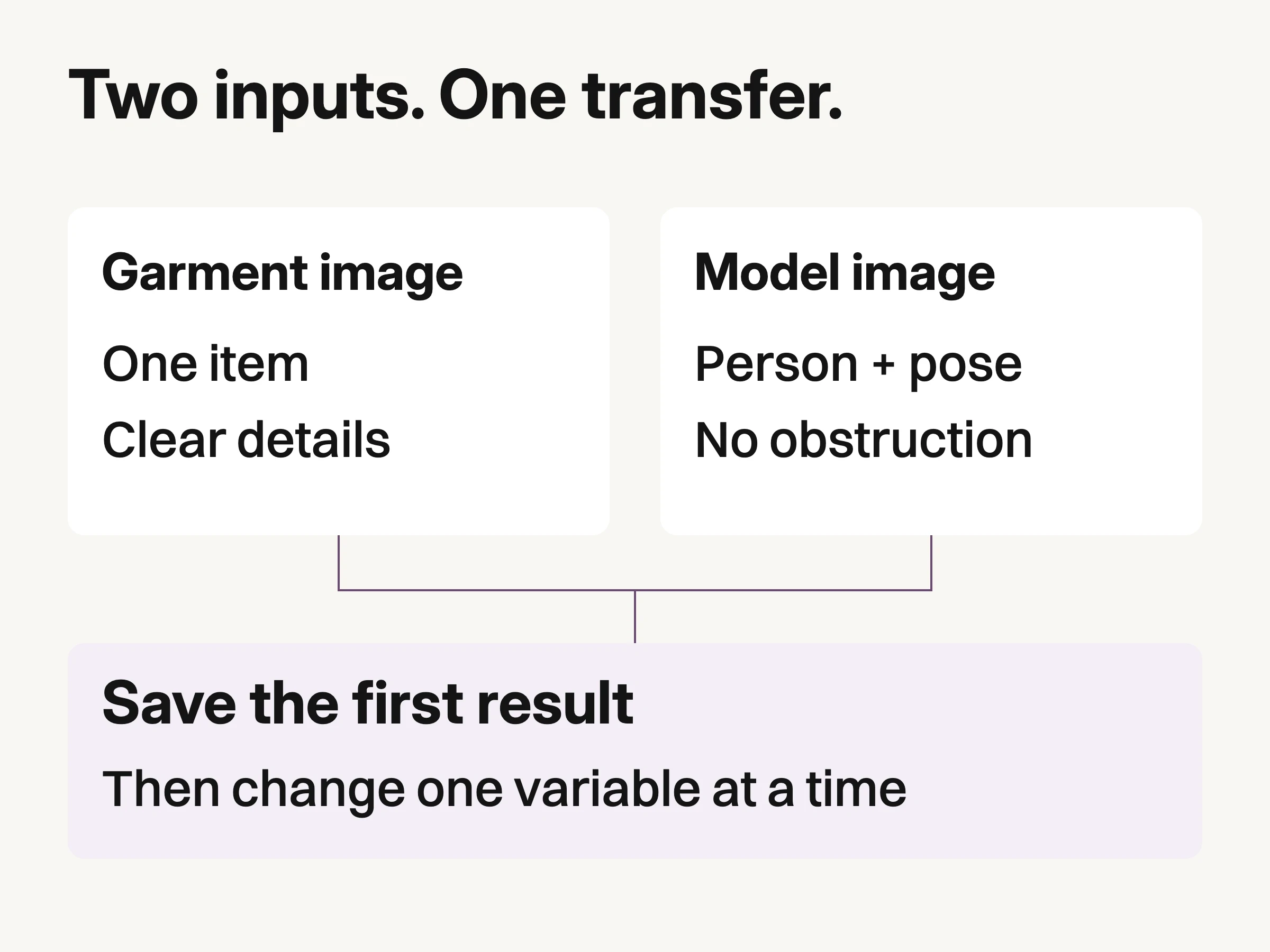
Assign the item and the person to their separate input roles. Save a baseline before changing another variable.
If the product is on a mannequin, the mannequin-to-model workflow covers that source's hidden construction and shape limits. If you have not chosen a platform, use the AI clothing model generator evaluation guide. Here, the job is to complete and troubleshoot one transfer.
Inspect the upload, not just the original photograph
Open the exact file you are about to upload and enlarge a small construction detail. Can you distinguish the button from its shadow? Can you follow the pocket seam? A high-resolution original does not help if the file selected for upload is a tiny store thumbnail.
Google's merchant guidance recommends unobstructed garment details and high-resolution product images. Its stated dimensions apply to Google's workflow; they are not universal minimums for every generator. Follow your chosen tool's documented input requirements and also inspect whether the important detail survived your own export.
For the plate below, we made a synthetic overshirt image, reduced that same image to 160 pixels wide, then enlarged the same detail region from both versions. This is a controlled resizing demonstration. No try-on model was run, and the garment is not a photographed sale item.
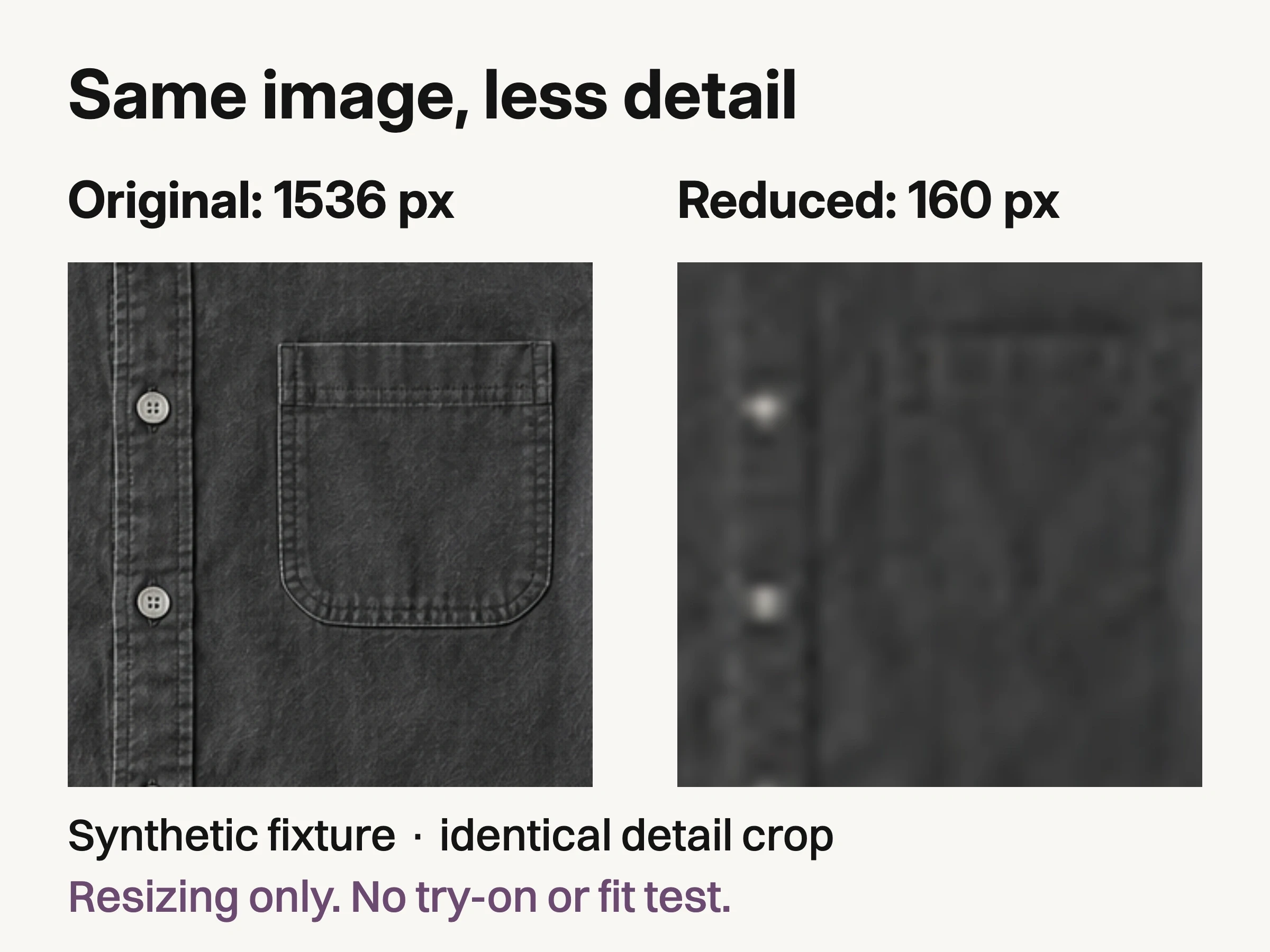
Controlled first-party resizing demonstration using a synthetic garment. Both panels show the same crop: original 1536px-wide source versus source reduced to 160px wide, then enlarged. No try-on, fit test or real SKU is shown.
The low-resolution crop has fewer distinguishable fabric and stitch details. Enlarging its display makes those pixels bigger; it does not recover the original information. The practical consequence is modest: use the original product export, and keep a closer detail photograph available for review. This experiment does not establish a universal input threshold or predict a particular generator's output.
Run a baseline before asking for styling
Start with the tool's garment-transfer mode and place each file in its documented role. FASHN's current Studio guide, for example, describes a model-image input and a product-image input. Its guide also allows an instruction identifying a particular item when the source contains several. That is a documented example, not a claim that every app has the same controls.
Write the requested change narrowly: “Put the charcoal overshirt from the product image on this model. Keep it buttoned, with sleeves down. Keep the model's pose and background.” This is a starting brief, not a tested magic prompt. Where a tool uses category selectors rather than text, choose the corresponding garment category.
Be particularly careful with full-outfit source photographs. FASHN's v1.6 API reference says automatic category selection treats full-body on-model sources as a full outfit swap. Other tools may behave differently. Do not assume that selecting a photograph of a shirt and trousers means “shirt only.”
Save the first output alongside the exact two input files, the tool or model version if exposed, and your instruction or selected settings. Check it before adding a new pose, location or accessory. Otherwise, a failed sleeve becomes entangled with three other changes and the next retry teaches you very little.
Change the input that explains the failure
Use this table as a diagnostic starting point, not a promise that one retry will solve every case. The one-change method is our editorial recommendation: keep the original result, change one suspected cause, then compare the new output against it.
Visible problem | Next controlled change |
|---|---|
The trousers changed when only the shirt was wanted | Keep the model image; explicitly select the top or provide a source containing only that item. |
A sleeve disappears behind a hand | Keep the garment; try an unobstructed model pose. |
Buttons or print cannot be checked in the upload | Replace the thumbnail with a sharper source of the same item and view. |
The output invents a back you never supplied | Return to the supported front view or capture the missing back. |
A clear source detail is wrong in the output | Keep the source and record the defect; retry the transfer or use a supported local edit, then inspect again. |
Editorial troubleshooting guidance. Change one suspected cause and compare with the saved baseline.
Do not repair a made-up pocket merely by describing a more attractive one. Compare it with the actual garment. If the source is clear and repeated attempts still change a sale-critical feature, use a real product photograph for that view. Record the rejected result so a teammate does not accidentally export it later.
Keep “can I see it?” separate from “is it correct?” A visible but incorrect button count is an output defect; an invisible button in the source is missing evidence. Those problems need different fixes.
Approve the clothing before the campaign crop
Review the output beside the original product photo at a useful detail scale, then at the size customers will see. Match the neckline, closure, pockets, sleeve shape and any identifying print. Look at the body and hands too, but do not let an appealing face distract from an altered garment.
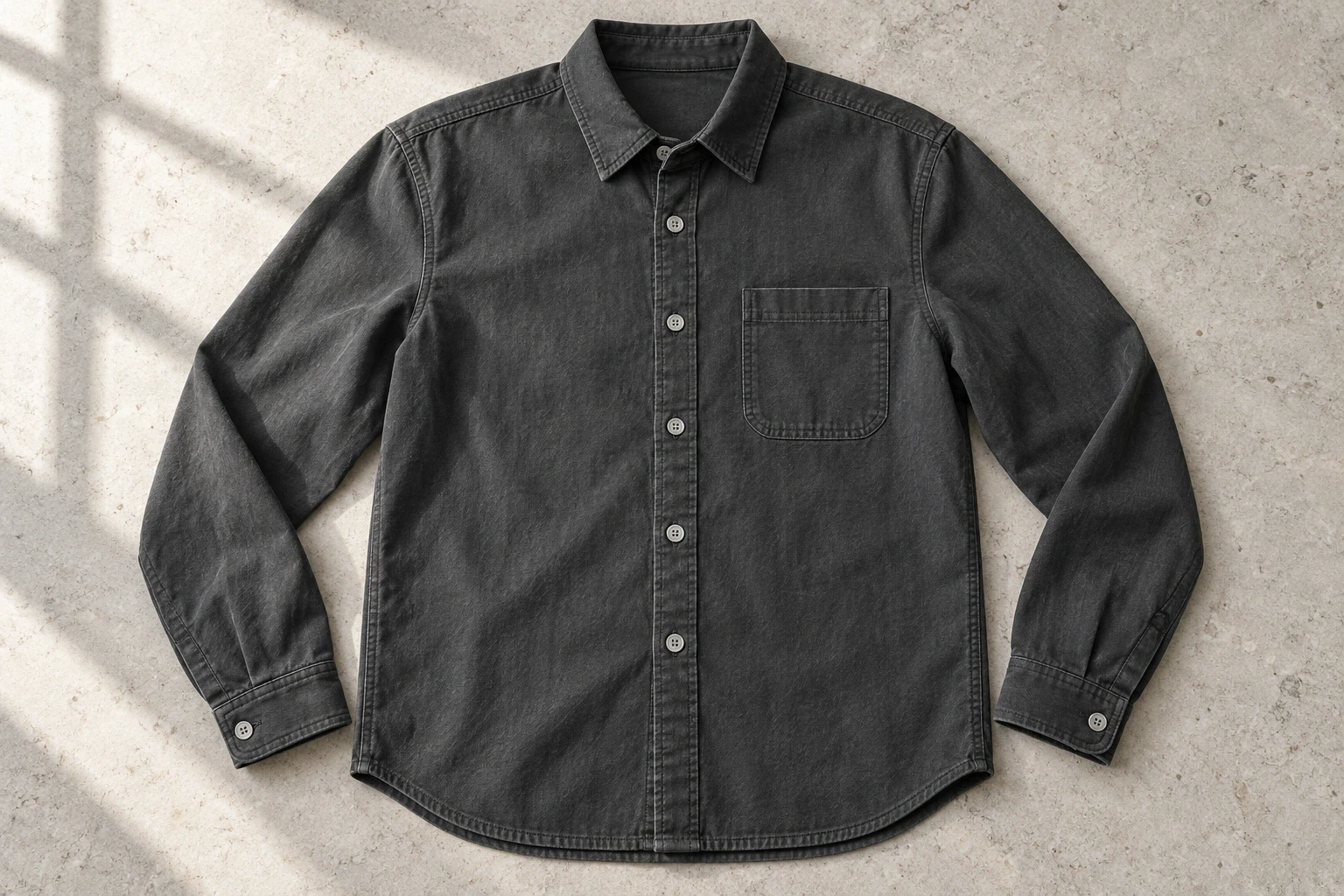
Conceptual illustration: a synthetic overshirt used as the resizing fixture above, not a sale item or verified AI try-on.
The charcoal shirt above is a conceptual illustration, not a verified try-on result. For a real SKU, the comparison reference must be your actual item. Keep genuine measurements, size information and documentary product photographs in the buying journey; a generated on-model image adds visual context, not measured fit.
Once one transfer passes, it can become the reference for a wider visual brief. Look Atlas creates product-on-model and campaign-style imagery from product photos. Use that production route when you need brand visuals, while retaining the same garment review. This guide does not establish that Look Atlas reproduces the specific input controls of another tool.
For the handoff, deliver the approved image, its two source files, the settings record and the intended placement together. Keep the rejected attempts outside the delivery folder. The next person should be able to identify which garment was transferred, which result passed review, and what the image is allowed to communicate without reconstructing your session.
