
Shopify variant images: assign the image, then define the gallery
A shopper chooses the charcoal shirt, the large image changes, and the next thumbnail still shows cream. That can happen even when the variant image is assigned correctly. Shopify's native assignment identifies one image for a sellable variant; it does not, by itself, define a separate multi-image gallery for every color.
For Shopify variant images, settle two questions before commissioning more photography: which image identifies each combination, and which other images should remain visible after selection? A correct answer to the first does not guarantee the second.
Follow one shirt through the product record
Consider a hypothetical shirt in Cream and Charcoal, each offered in Small, Medium and Large. That creates six combinations. If the front photograph accurately represents each size's visible design, the three Cream variants can reference the same approved Cream image, and the three Charcoal variants can reference the same Charcoal image.
That is six assignments to two image files, not six mandatory photographs. It does not establish how each size fits a person. Where a size changes visible construction, proportions, included parts or presentation, decide whether it needs its own identifying view.
Shopify's variant-image instructions permit one assigned image per variant. Additional back, detail and contextual views belong in the product's media gallery. They are useful photographs, but uploading them is a different action from assigning the variant's identifying image.
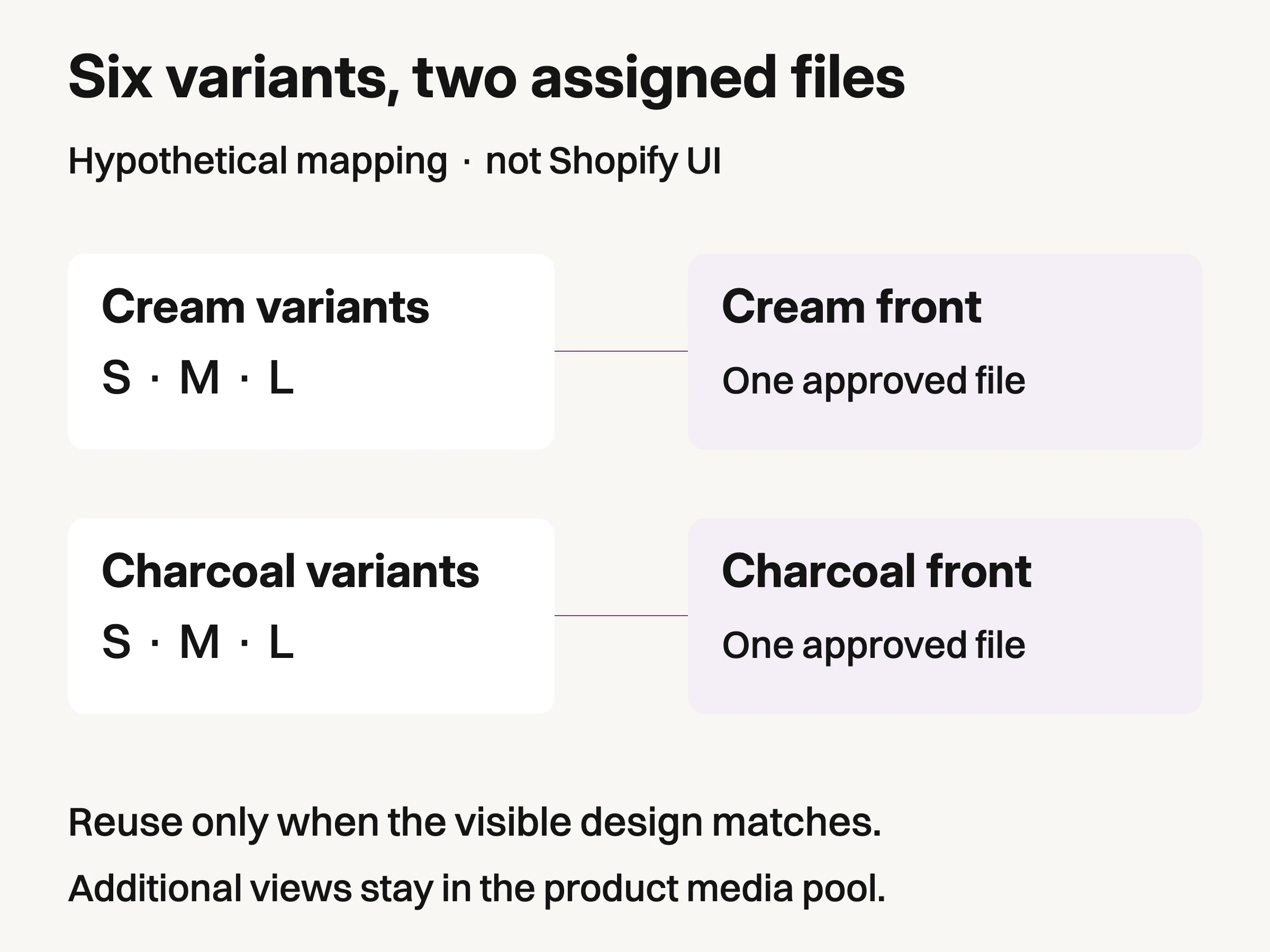
Hypothetical mapping, not Shopify UI: reuse an identifying image only when it truthfully represents the visible design. Supplemental views remain separate product media.
Keep those relationships explicit in the handoff. A filename such as shirt-charcoal-front.jpg helps a person understand the asset. It does not automatically connect that file to Charcoal / Small, Charcoal / Medium and Charcoal / Large in Shopify.
The identifying image, the product's main media and a swatch also have different jobs. The main media is the product's first media item. A swatch is an option-selection aid; it is not proof that the full-size product image or its supporting gallery has been assigned correctly. Test the selection, rather than approving the page because its color buttons look right.
Count visible differences separately from variant records
The platform's capacity numbers reinforce that distinction. Shopify currently allows up to 2,048 variants for one product, while the product media pool supports up to 250 items across images, videos and 3D models. These limits count different entities. They are not a recommended catalog size or a photography target.
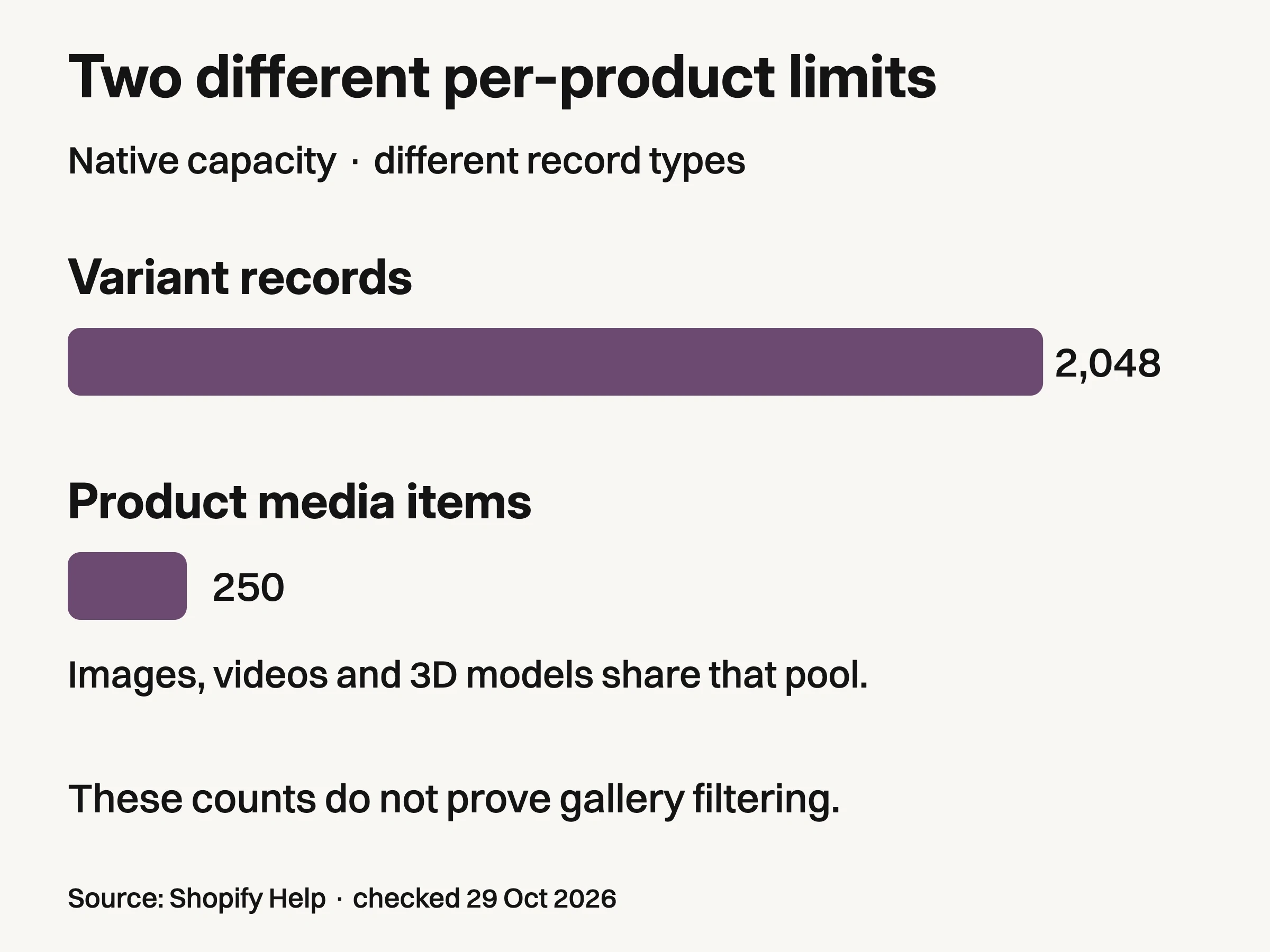
Shopify Help, checked October29,2026: up to2,048variant records and250product media items per product. The media pool includes images,videos and3Dmodels. Different entity types; these limits do not demonstrate storefront filtering or required photograph counts.
A product with the maximum number of variants cannot assume a different native product-media file for every combination. Several combinations may reference one truthful image. Conversely, one visible color may need several useful photographs. Neither the variant count nor the media limit tells a photographer how many views to make.
For the hypothetical shirt, suppose the brief requires a front, back and seam-detail image for each of its two colors. That is six distinct files in the shared gallery, while the six sellable combinations still need their identifying-image assignments. Reusing the front image across sizes does not mean reusing a Cream seam detail as evidence of Charcoal fabric.
The counts come from Shopify's current variant considerations and product-media guidance. They describe native product records, not the storage or display rules of every app or combined listing. Shopify also warns that some themes, apps and channels might not support products with more than 100 variants. Check the actual integration before expanding a large product.
This is where the image-production brief becomes specific: list the visible differences that need capture, the variant combinations each identifying image represents, and the supporting files that belong with each option. Keep resolution and export decisions in the separate Shopify product picture size guide.
Decide what selecting a color should do
Choose the intended gallery behavior in words before choosing an app or changing theme code. “Show Charcoal first” and “show only Charcoal's front, back and detail” are different requirements.
Shopify recommends placing related images together in the product gallery and assigning one as the variant preview. That gives the additional views an order; it does not establish that unrelated views will disappear. The storefront theme or an additional implementation determines the presentation.
Theme documentation makes the distinction concrete. Company XYZ's Align guide documents modes that move the selected image first, show only that image, or leave the gallery unchanged. Those are Align settings, not universal Shopify controls. The Next theme's documentation describes a different approach: a variant metafield containing a list of files, connected to its picker.
Neither example is an integration tested for this article. Their value is showing why “supports variant images” is too vague a requirement. Ask which files the chosen implementation includes, where that membership is stored, and what it displays when a variant has no configured group.
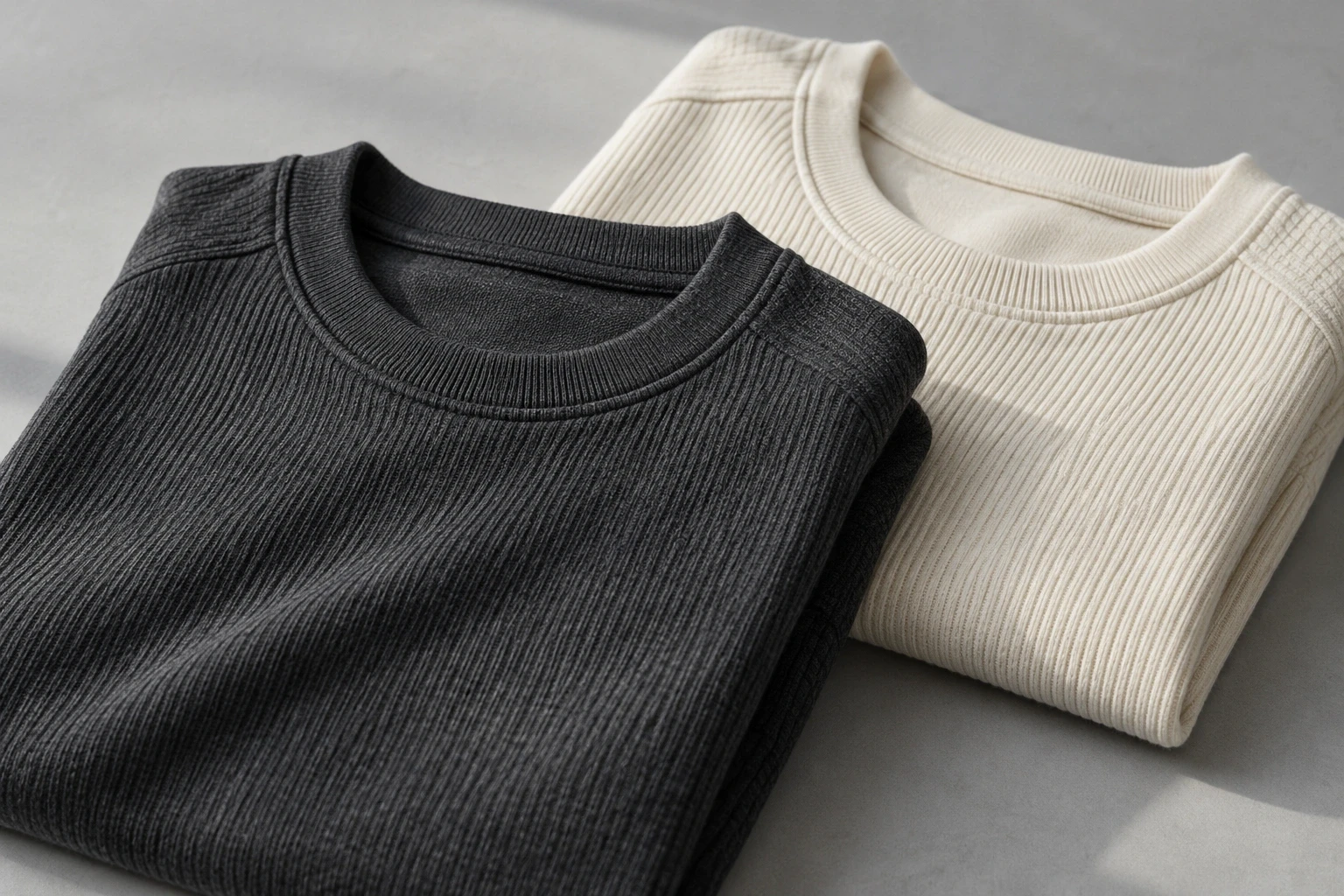
Conceptual illustration: independently generated garments emphasize color-specific fabric detail. They are not controlled views of the hero garments.
Keep genuinely shared images deliberately shared. A diagram of the same fastening might apply to both colors; a fabric close-up usually needs the correct material and color. Do not hide essential shared information merely to make the thumbnail strip look tidier.
Shopify also points merchants who need option-specific image groups toward Combined Listings on eligible plans. Check its current requirements before treating it as the solution for your store. It is a different product organization decision, not a switch that every Shopify account has.
Assign every combination, then test the actual selection
Prepare the approved files and a list of the combinations each one represents. In Shopify admin, open the product, find its variants and use the image control to select an existing product image or upload the intended one, then save. The current Help page also describes bulk assignment through selected variant checkboxes and the Add images or Edit images action.
Shopify is rolling out a redesigned product details page, so the exact layout may differ between stores. Follow the assignment for the complete combination. Assigning Cream / Small does not justify assuming that Cream / Large has the same saved image.
Then test a saved product on the actual intended theme. Select each color, change size while keeping that color, and switch back. Check the selected option text, large image and remaining gallery together. Perform the same sequence on a narrow screen, where a retained wrong-color detail can be less obvious than the opening image.
What the shopper sees | What to inspect first |
|---|---|
The selected option and identifying photo disagree | The saved image assignment for that exact variant combination. |
Color selection works, but changing size restores another color | Assignments across the same color's size combinations, then the theme's selection handling. |
The identifying image is right, but other colors remain in thumbnails | The intended gallery policy and the theme or app configuration, not just the assignment. |
A color's back or detail image is missing | Whether the file exists in product media and, if grouping is used, belongs to the correct group. |
A variant without a gallery group keeps the previous group's images | The implementation's fallback behavior; do not infer that a missing group is safe. |
Proposed acceptance checks for your actual theme and product; not a completed integration test.
This is a proposed acceptance test, not a report of a store we configured. If the admin assignment is correct and the storefront is wrong, preserve the exact option sequence, theme version and observed image before changing several settings at once. That gives the implementer a reproducible defect rather than “the pictures are broken.”
Hand production a mapping, not a folder
For a physical capture commission, supply the option names, visible differences, approved identifying views and supplemental-image requirements together. If you are evaluating an outside studio, the Amazon photography service guide can help frame the photographic deliverables. Give that supplier the Shopify mapping separately: a marketplace image package does not define storefront assignments or theme behavior.
Look Atlas can support generated studio, lifestyle and campaign imagery from product photographs. Keep those creative outputs tied to the correct product references and review visible color, material and construction before adding them to an option's media. Generating an image does not assign it to Shopify or configure its gallery.
The useful final handoff is a product whose combinations point to the intended identifying images, with a written rule for the supporting gallery and a completed selection test. When a new color arrives, extend that same mapping and test sequence instead of asking the next operator to guess from filenames.
